

Zoho and Lappa
Integration Guide
Integration with Zoho allows businesses to automatically send invoices from Zoho to Lappa for your VAT, ERP, E-invoices
Lappa is also available on Zoho Marketplace. View our official Zoho Marketplace listing

Integration of Lappa with Zoho allows
To send invoices from Zoho to Lappa for VAT calculation and Peppol-compliant e-invoicing.

Reduces VAT errors, and ensures your invoices remain compliant with EU tax requirements.

To connect your Zoho account with Lappa in just a few steps.
Key Benefits
-
Automatic VAT calculation for Zoho invoices
-
Peppol-compliant e-invoicing
-
Reduced manual accounting work
-
Automatic invoice syncing between platforms
-
Better VAT compliance for EU businesses

Use Cases
Who should use this integration
-
SaaS companies using Zoho for invoicing
-
eCommerce businesses managing invoices in Zoho
-
EU companies requiring Peppol compliance
-
Finance teams automating VAT reporting
How to Connect Zoho to Lappa
1. Prepare for integration with Zoho
To start the integration with Zoho , go to your Lappa platform and log in using your credentials.
When you’re in:
- Log in to your Lappa account with your credentials.
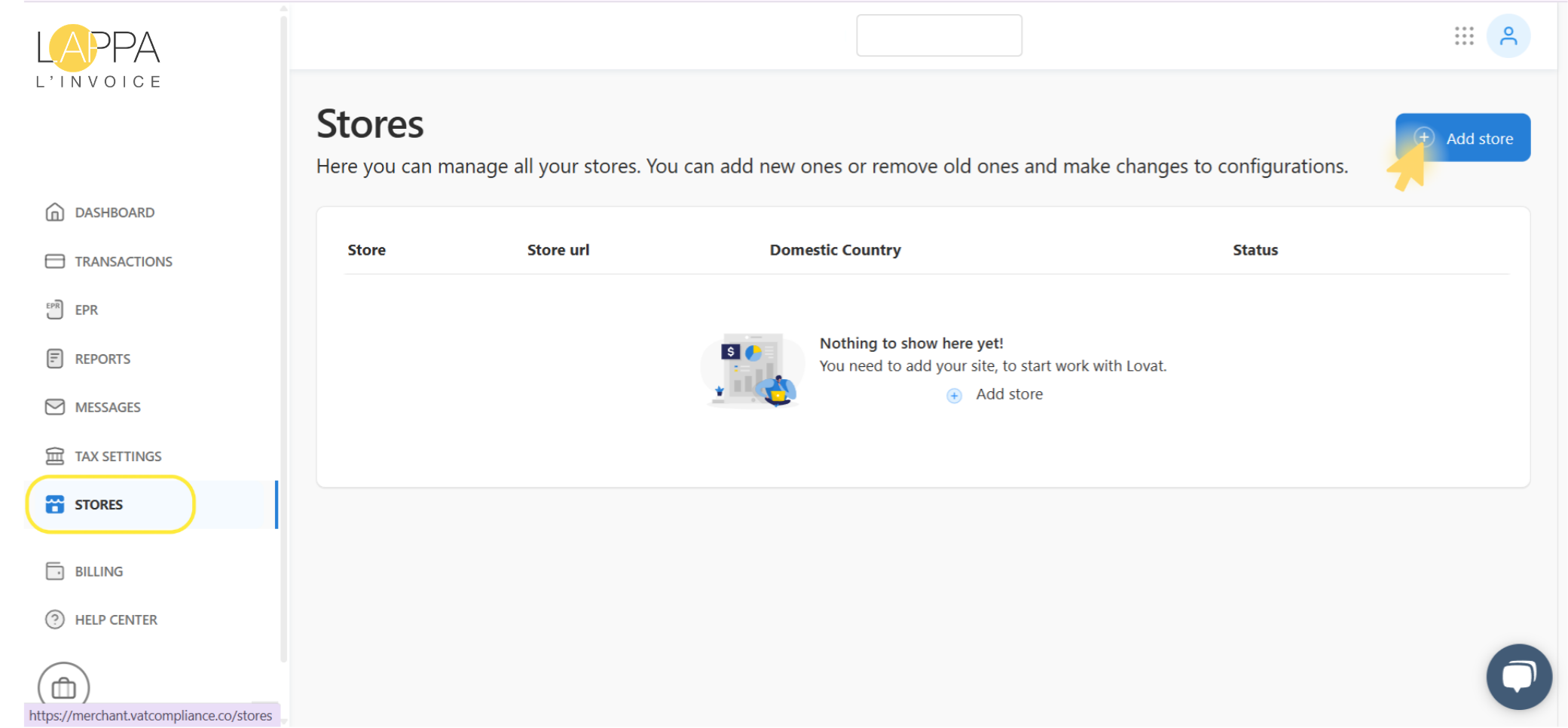
- In the left-hand menu, click on STORES.
- In the top-right corner, click Add store to start setting up the new integration.
2. Connect Zoho to Lappa
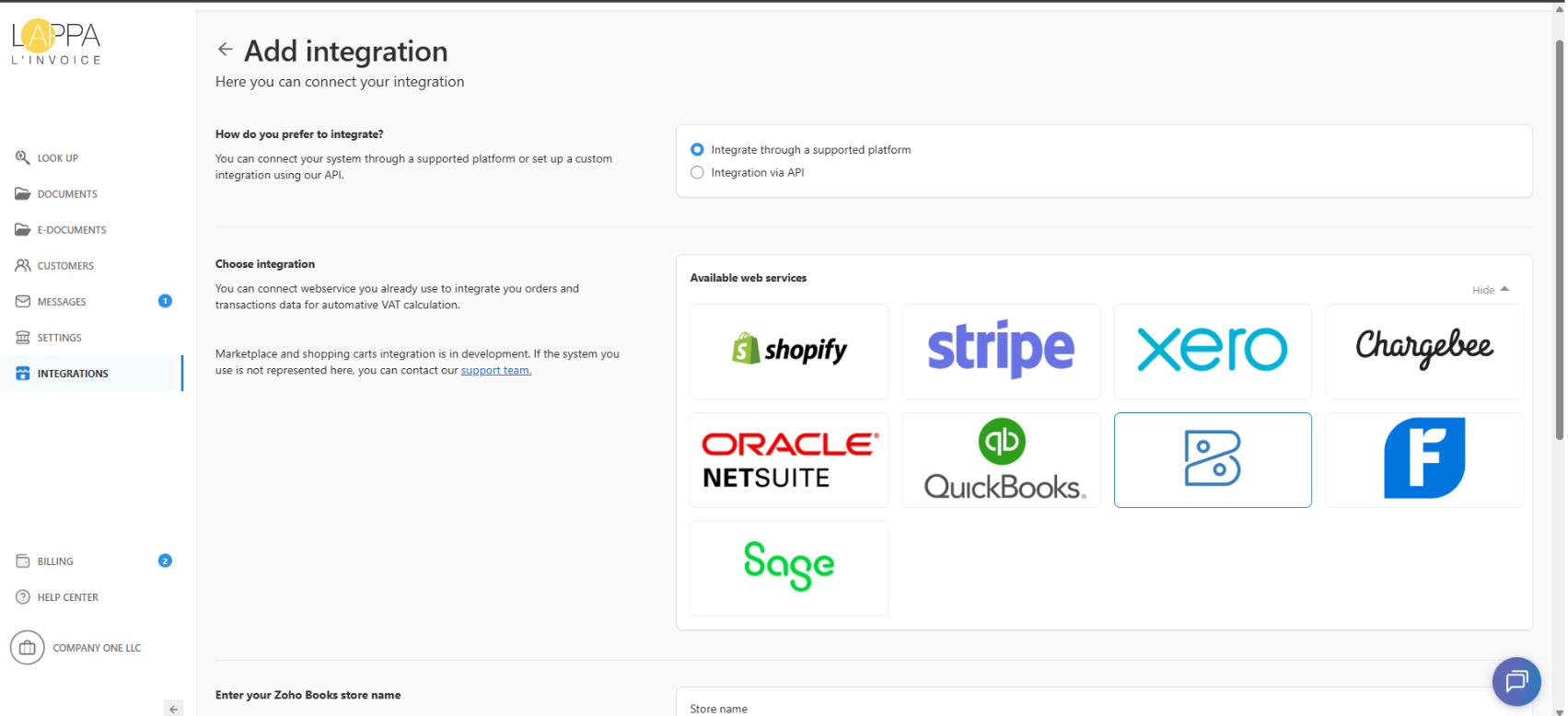
On the Add store page:
- Under “How to you prefer to integrate?”, select “Integrate through a supported platform”.
- In the Available web services area, click Show all to see every option you can connect to.
- From the list, choose Zoho to proceed.
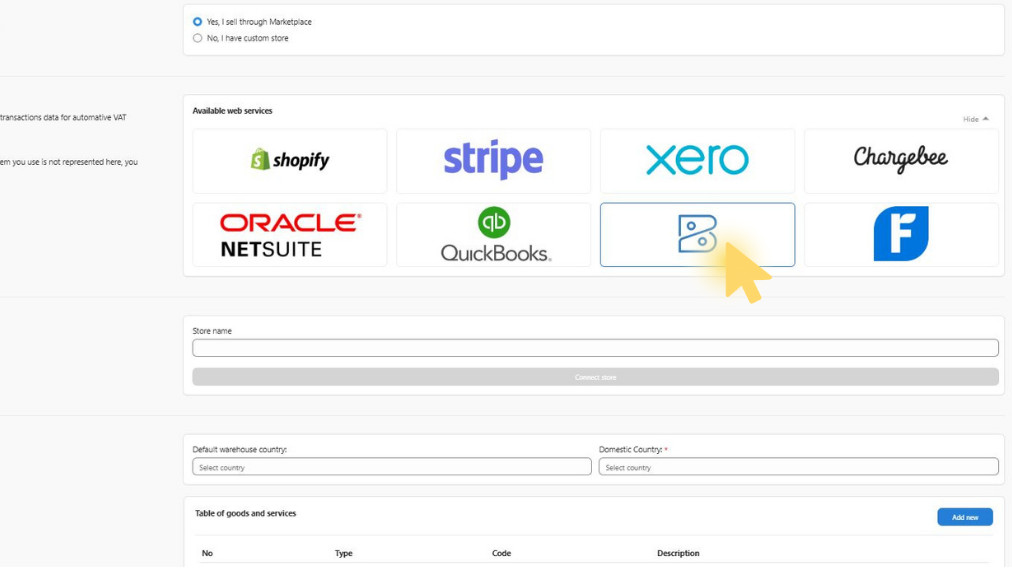
3. Fill in Store Details
- Enter your Zoho store name in the Store name field — use a clear name so you can recognize this integration later.
- Select your Default warehouse country and your Domestic Country for tax settings.
After completing all required fields, click Connect store.
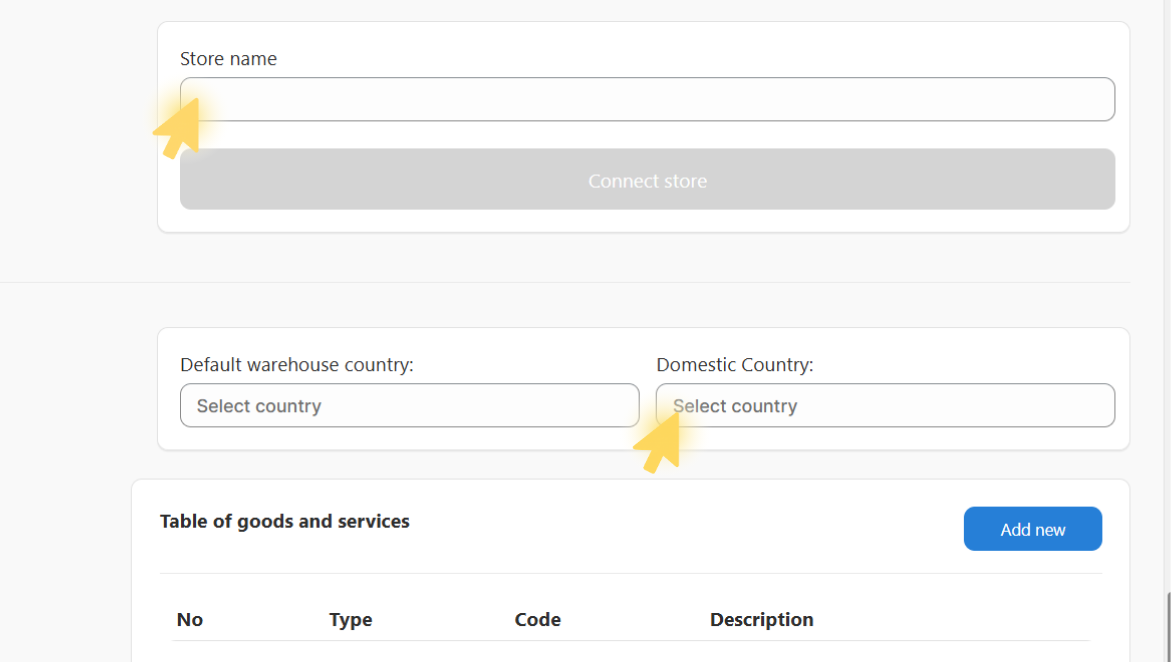
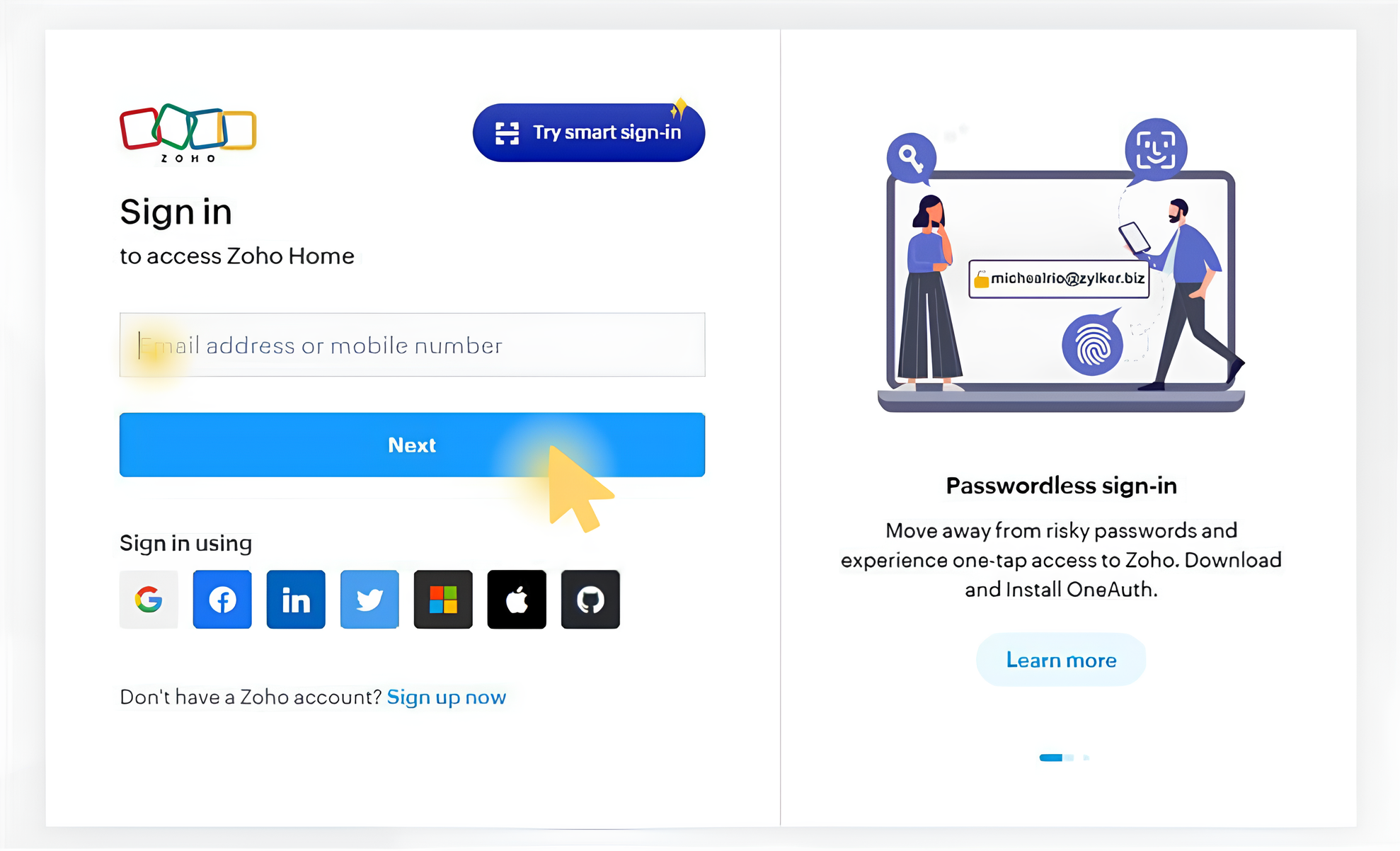
4. Login in Zoho Account
- Once you click Connect store, you’ll be redirected to the Zoho login page.
- Enter the email address linked to your Zoho account.
- Type your Zoho password and click Log in.
If you don’t remember your password, click Forgot password? to reset it.
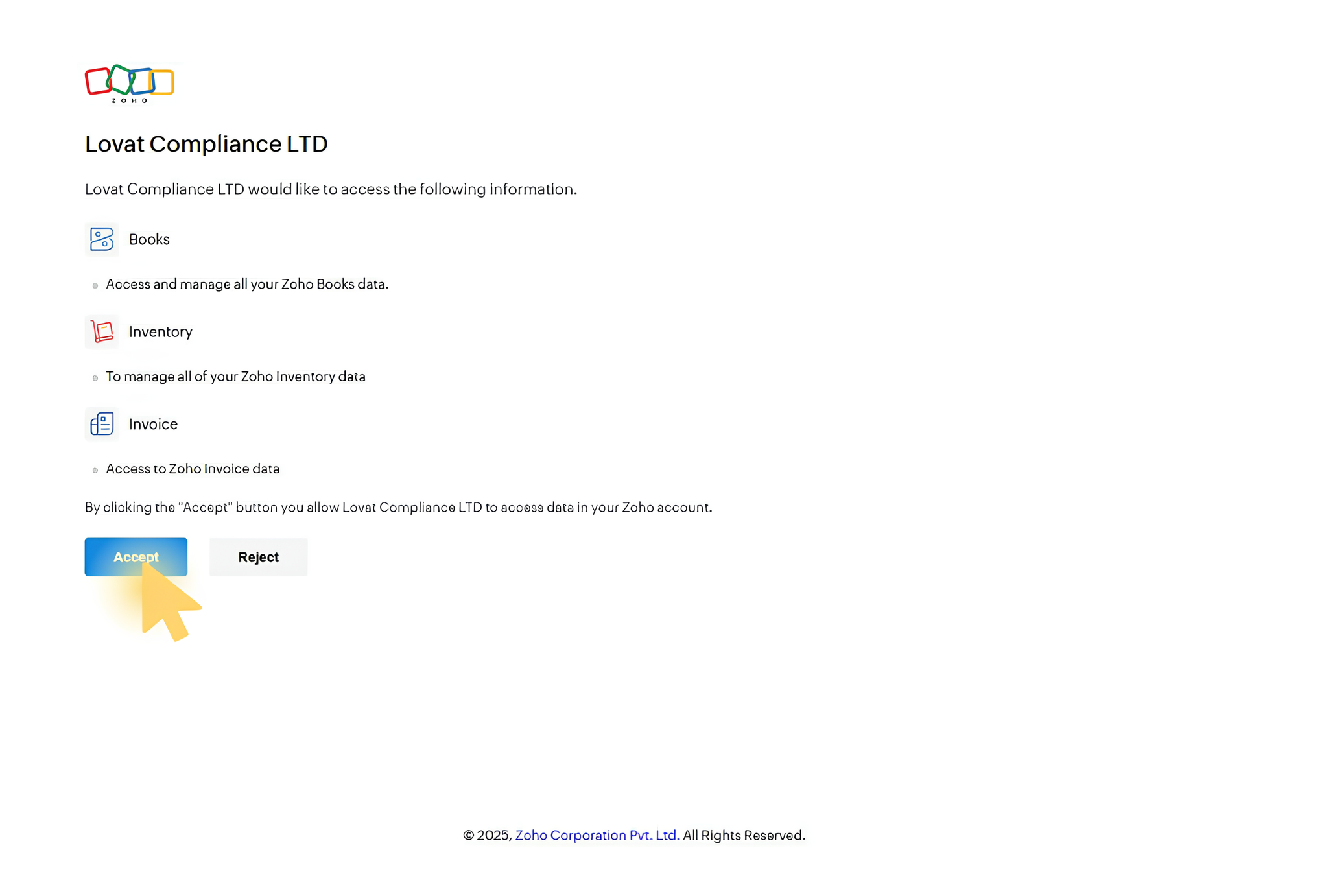
You’ll then see a screen requesting authorization for Lappa to access your Zoho data:
- Typical permissions requested: organization data and account details.
- Review the requested permissions carefully, then click Allow access to finalize the connection.
You can revoke Lappa’s access anytime in your Zoho connected apps settings if you need to.
What Happens after Integration
Invoices created in Zoho are automatically sent to Lappa for VAT validation and processing
VAT rates and compliance checks are applied automatically according to EU tax requirements
Invoice data is synchronized between Zoho and Lovat, reducing manual data entry and errors
Your finance team can manage VAT compliance and invoicing workflows directly from Lappa
Frequently asked questions
What does the Zoho integration with Lappa do?
The integration allows invoices created in Zoho to be automatically sent to Lappa for VAT validation, compliance checks, and automated tax processing.
Do I need technical knowledge to set up the integration?
No. The integration can be connected through a simple authorization process using your Zoho account.
Does the integration sync invoices automatically?
Yes. Once the integration is active, invoices created in Zoho can automatically sync with Lovat depending on your configuration.
Can I disconnect the integration later?
Yes. You can revoke access from your Zoho connected applications or disable the integration in your settings.
Is my data secure?
Yes. The integration uses secure authorization methods provided by Zoho and encrypted data transfer to ensure that your information remains protected.
What countries does the VAT compliance support?
Lappa supports VAT compliance across multiple jurisdictions, particularly within the European Union.